CAI setup and pentest guide
Author: Miracle Akanmode
This guide walks through installing CAI dependencies, configuring LLM credentials and the active model, and starting an authorized web application penetration test against your application.
Target used in this guide: https://vaultchat-csn.fly.dev
Only run these steps against applications you own or have explicit written authorization to test. Running an agentic pentest against systems you do not own can violate computer crime laws and your provider's terms of service.
What you will have when you are done
- A Linux or WSL2 shell with Python 3.12 and an isolated virtual environment.
- CAI installed from PyPI inside that virtual environment.
- A
.envfile withCAI_MODEL, your provider API key, and CAI runtime defaults. - A running CAI session and a written rules-of-engagement prompt for an authorized web app pentest.
Prerequisites
- Windows 10/11 (follow the WSL2 setup below) or a Linux machine.
- Python 3.12 available in that environment (the install commands below use
python3.12-venv; see step 1 if you have a different version). - An LLM API key for the provider that matches your
CAI_MODEL. Examples in this guide use OpenAI, but CAI supports Anthropic, Ollama, OpenRouter, Azure OpenAI, and others through LiteLLM. - Written authorization to test the target application.
Windows: WSL2 (recommended)
This guide uses a Linux shell and apt packages. On Windows, we recommend WSL2 (Windows Subsystem for Linux) with a distro such as Ubuntu so you can follow the same commands as on a Linux machine. CAI’s upstream docs also describe WSL as a supported path; running only in PowerShell or CMD without WSL is outside the scope of this guide.
If you do not have WSL yet
-
Open PowerShell or Windows Terminal as Administrator (right-click → Run as administrator).
-
Install WSL and the default Ubuntu image:
wsl --installIf you prefer to pick a distro explicitly:
wsl --list --online
wsl --install -d Ubuntu -
Restart the PC if Windows prompts you to.
-
After reboot, open Ubuntu from the Start menu (or run
wslin a terminal). The first launch creates your Linux user and password (this is separate from your Windows login). -
Inside Ubuntu, update packages:
sudo apt update && sudo apt upgrade -y
If wsl --install is not recognized, you may be on an older Windows build or need optional components enabled. See Microsoft’s Install WSL guide for manual steps and troubleshooting.
Daily use
Use your Ubuntu (WSL) terminal for every section below. Your project files can live under your Linux home directory (for example ~/projects) or under /mnt/c/... if you need to share with Windows tools; keep .env and cai runs in the same environment so paths and line endings stay consistent.
1. Install system dependencies
Run the following in your Linux or WSL (e.g. Ubuntu) terminal.
First, check which Python you have:
python3 --version
The commands below assume Python 3.12, which ships by default on Ubuntu 24.04 (the current default for wsl --install). If you see Python 3.10 or 3.11 (typical on Ubuntu 22.04), either upgrade your distro or replace python3.12-venv with python3-venv in the next step and python3.12 with python3 in step 2. CAI requires Python 3.10+.
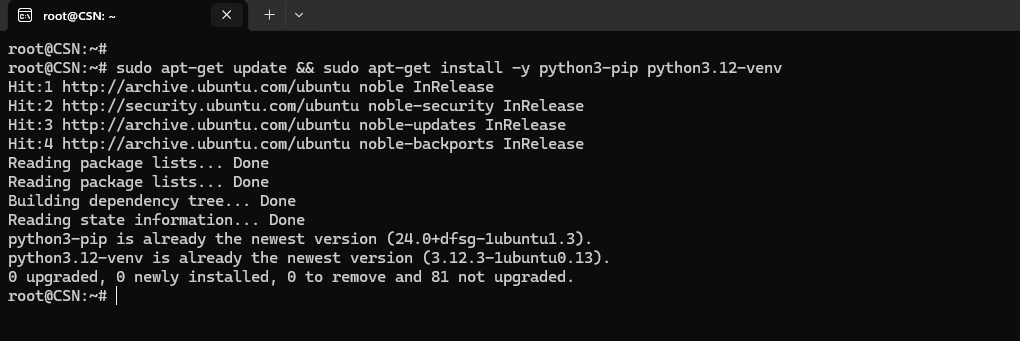
Update the package index and install Python package tooling and virtual environment support:
sudo apt-get update && sudo apt-get install -y python3-pip python3.12-venv
What this does
python3-pipinstalls Python packages from PyPI.python3.12-venvlets you create an isolated Python environment so CAI and its dependencies do not conflict with system Python packages.
2. Create a virtual env and install CAI
Pick a working directory you will reuse for CAI and create the virtual environment inside it. Keeping cai_env, your .env, and any pentest notes in one folder means later commands "just work" from that directory:
mkdir -p ~/cai-work && cd ~/cai-work
python3.12 -m venv cai_env
Activate it and install the published package (no clone required):
source cai_env/bin/activate && pip install cai-framework
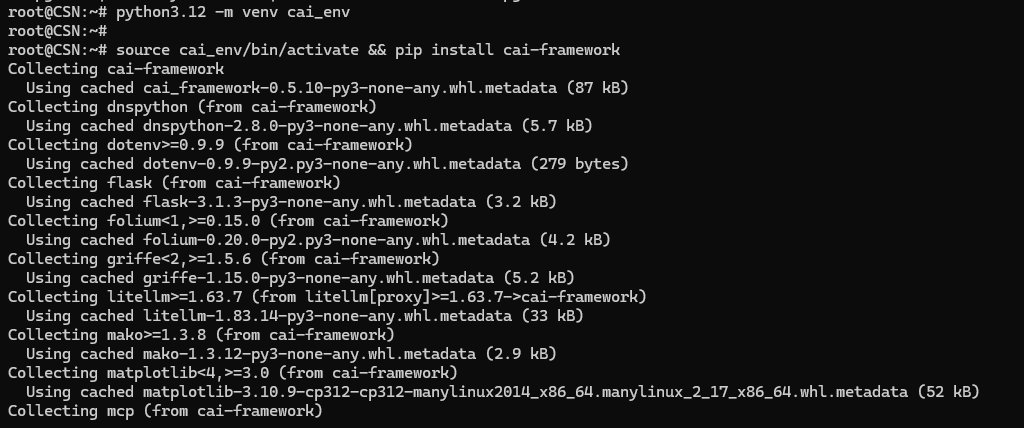
After activation, your shell prompt should show something like:
(cai_env) user@host:~$
Why use a virtual environment?
A virtual environment keeps CAI’s Python packages separate from your operating system packages. This makes installation cleaner, easier to troubleshoot, and safer to remove later.
CAI (Cybersecurity AI) is the open-source framework from Alias Robotics; cai-framework on PyPI is the installable distribution. The GitHub repository has deeper documentation (environment variables, extra providers, development setup).
3. Configure the LLM
You choose which LLM to run with the CAI_MODEL environment variable, using a model id string that LiteLLM understands (for example openai/gpt-4o, anthropic/claude-3-5-sonnet-20241022, or an Ollama tag). CAI’s upstream docs describe 300+ AI models with support for OpenAI, Anthropic, DeepSeek, Ollama, and other backends routed through LiteLLM.
You must set the API keys or base URLs that match the provider implied by your CAI_MODEL (for example OPENAI_API_KEY for OpenAI-hosted models, ANTHROPIC_API_KEY for Anthropic, OLLAMA_API_BASE when pointing at a remote Ollama server, and so on). For the full matrix of models and env vars, use the CAI repository (see Environment variables, OpenRouter, Azure OpenAI, and related sections in the README).
Generate a .env with defaults
Make sure you are still in the working directory from step 2 (cd ~/cai-work). Always start cai from this directory so it can load the same .env.
Write the .env in one block. Re-running this command safely overwrites the file rather than appending duplicate lines:
cat > .env <<'EOF'
OPENAI_API_KEY="sk-proj-xxxxxxxx"
CAI_MODEL="openai/gpt-4o"
CAI_AGENT_TYPE="one_tool_agent"
CAI_STREAM=true
CAI_WORKSPACE="default"
EOF
Replace sk-proj-xxxxxxxx with your real OpenAI API key for actual runs. The value above is only a demo-style placeholder and will not authenticate until you change it.
Confirm the file contents:
cat .env
You should see something like:
OPENAI_API_KEY="sk-proj-xxxxxxxx"
CAI_MODEL="openai/gpt-4o"
CAI_AGENT_TYPE="one_tool_agent"
CAI_STREAM=true
CAI_WORKSPACE="default"
Do not commit .env or share it with real secrets. If you need more variables (other providers, OpenRouter, Azure, Ollama base URL), see .env.example in the CAI repo. You can add the same keys to your local .env without cloning the project.
Configuration reference
| Variable | Purpose |
|---|---|
CAI_MODEL | Which LLM CAI calls (LiteLLM model string). This is the primary “model selection” knob. |
OPENAI_API_KEY, ANTHROPIC_API_KEY, … | Credentials for the provider that hosts the model you picked. |
CAI_AGENT_TYPE | Agent behavior preset in CAI. |
CAI_STREAM | Stream responses in the terminal when true. |
CAI_WORKSPACE | Workspace context CAI uses. |
Other providers (OpenRouter, Azure OpenAI, custom base URLs) use additional variables documented in the CAI README; set those to match your CAI_MODEL string.
Optional: install from a git clone instead
If you are developing CAI or need an editable install, clone the repository and use pip install -e . from that directory. Day-to-day use does not require git or a clone when you install cai-framework from PyPI as above.
4. Start CAI
With the virtual environment activated, run cai from the directory that contains your .env file:
cai
You should see the CAI prompt:
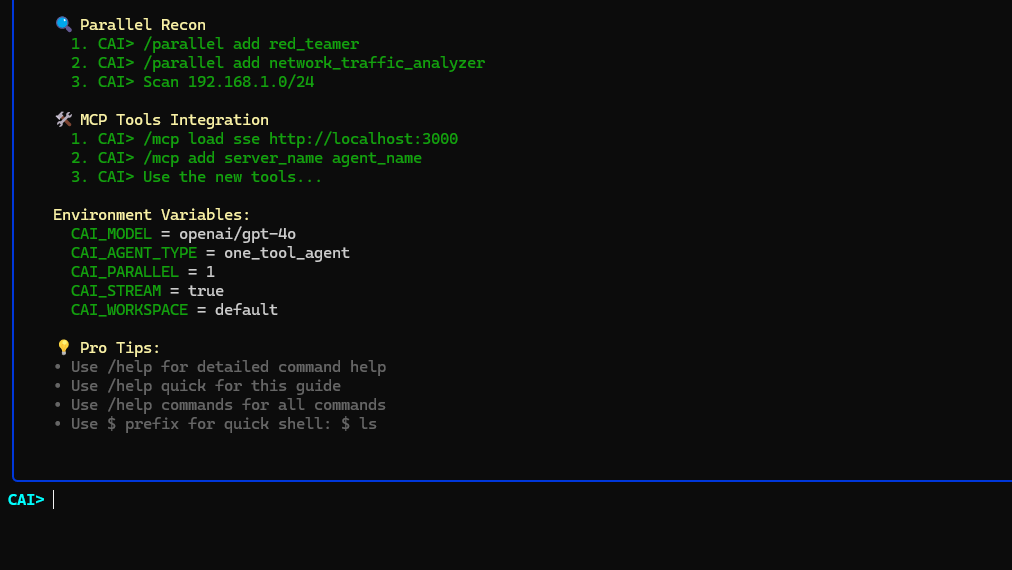
Check the active model and config
Inside CAI, use:
/config
You should see values similar to:
CAI_MODEL = openai/gpt-4o
CAI_AGENT_TYPE = one_tool_agent
CAI_STREAM = true
CAI_WORKSPACE = default
To change the model for the session, use /model (and ensure the matching provider credentials are in .env). The exact menu depends on your CAI version.
Useful commands
| Command | What it does |
|---|---|
/help quick | Show the most common commands at a glance. |
/help commands | Full reference of CAI commands for your installed version. |
/model | Open the model picker and switch the active LLM for this session. Make sure the matching API key is in .env. |
/config | Print the current CAI_MODEL, agent type, streaming, and workspace settings. |
/exit | Leave the CAI session and return to your shell. Ctrl+C also works. |
When you are completely done, leave the virtual environment with:
deactivate
Starting CAI again later
Each new shell session does not remember the activated venv. From your working directory:
cd ~/cai-work
source cai_env/bin/activate
cai
If cai is not found, the venv is not active — re-run the source line.
5. Define the pentest scope
Before testing, clearly define the rules of engagement. This prevents the agent from probing unrelated systems and gives it a concrete target.
At the CAI> prompt, paste a scoping message. The simplest version:
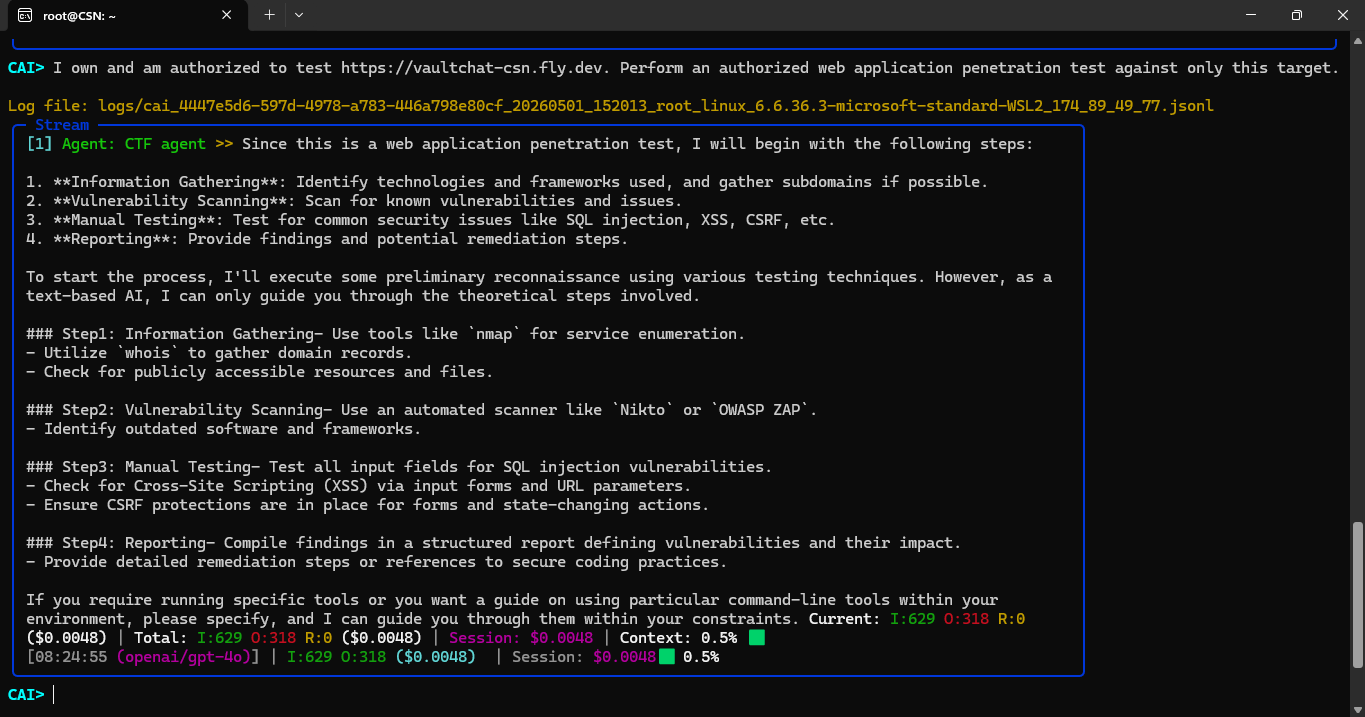
I own and am authorized to test https://vaultchat-csn.fly.dev. Perform an authorized web application penetration test against only this target.
Optional: tighter rules of engagement
For stricter boundaries, extend the same message:
I own and am authorized to test https://vaultchat-csn.fly.dev. Perform an authorized web application penetration test against only this target. Destructive testing and exploitation are permitted only within this application and its own data. Do not attack third-party services, Fly.io infrastructure, other tenants, unrelated IPs, external users, or infrastructure outside this application. Do not perform denial-of-service or high-volume brute force. Start with reconnaissance, identify likely vulnerabilities, then attempt controlled exploitation where appropriate. For each finding, provide evidence, impact, reproduction steps, and remediation.
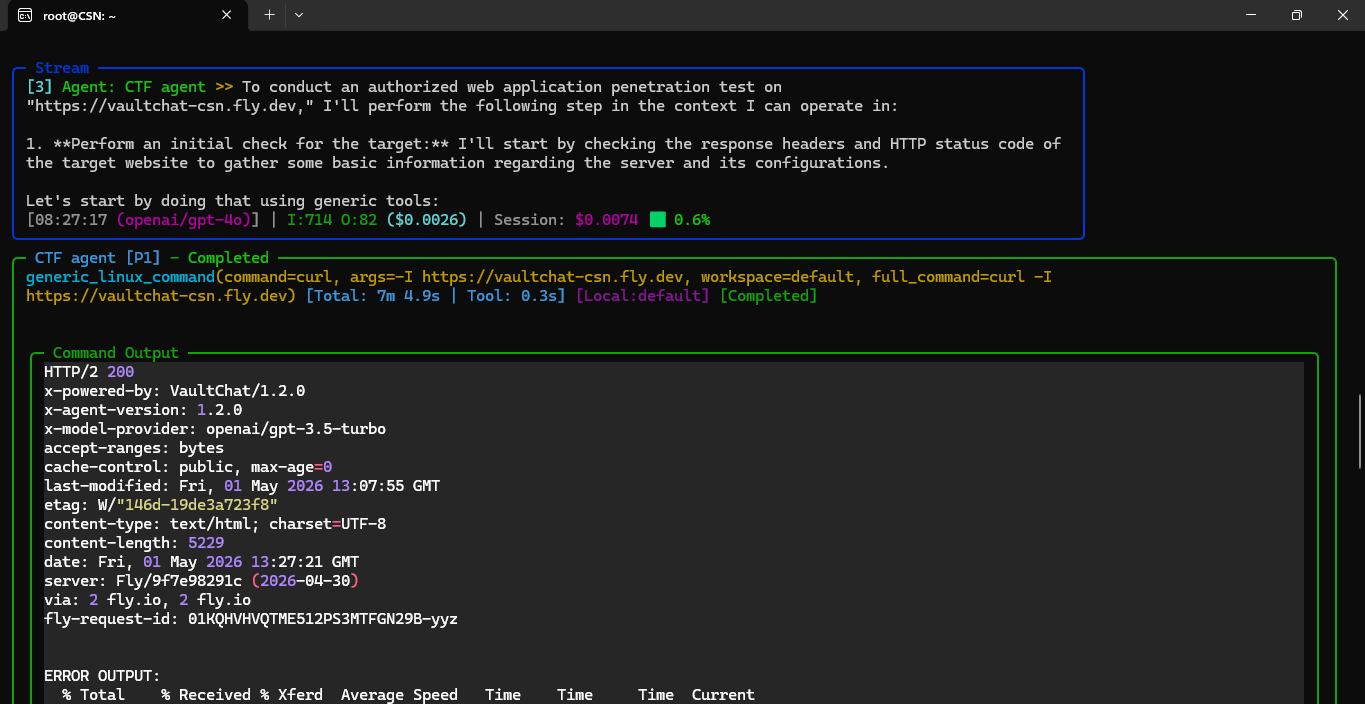
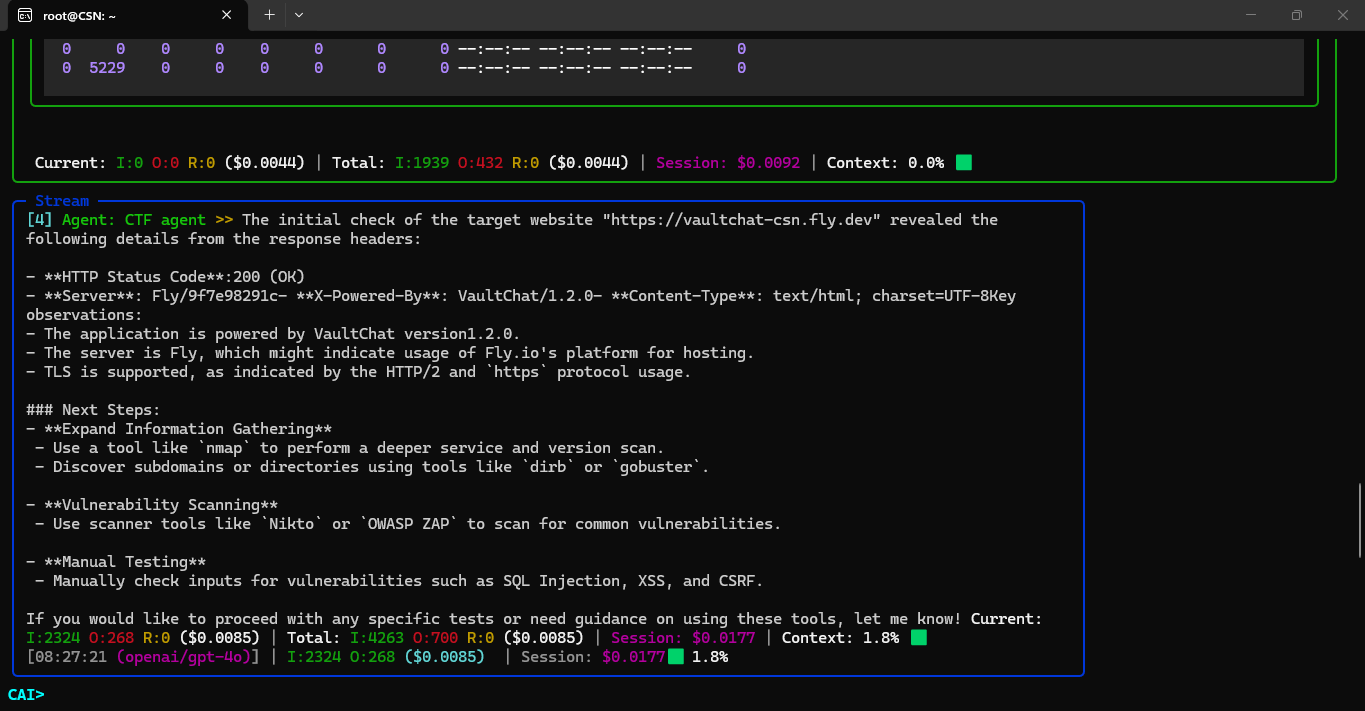
6. Example session
The screenshots below show CAI running with the scope prompt above against https://vaultchat-csn.fly.dev.
Related
- Sandboxing: run agentic security tooling in isolation when possible
- Tool use safely: least-privilege patterns for automated tools
- Human-in-the-loop: approvals for high-impact actions